CPU-Z User Guide: Complete Installation and Usage Instructions
Installation & Setup
CPU-Z is available in two versions:
- Setup Version: Contains an installer that automatically selects the appropriate version (32-bit or 64-bit) and creates shortcuts in the Start menu and desktop.
- ZIP Version: Portable version that doesn't require installation, can be run directly from any folder.
Program Interface
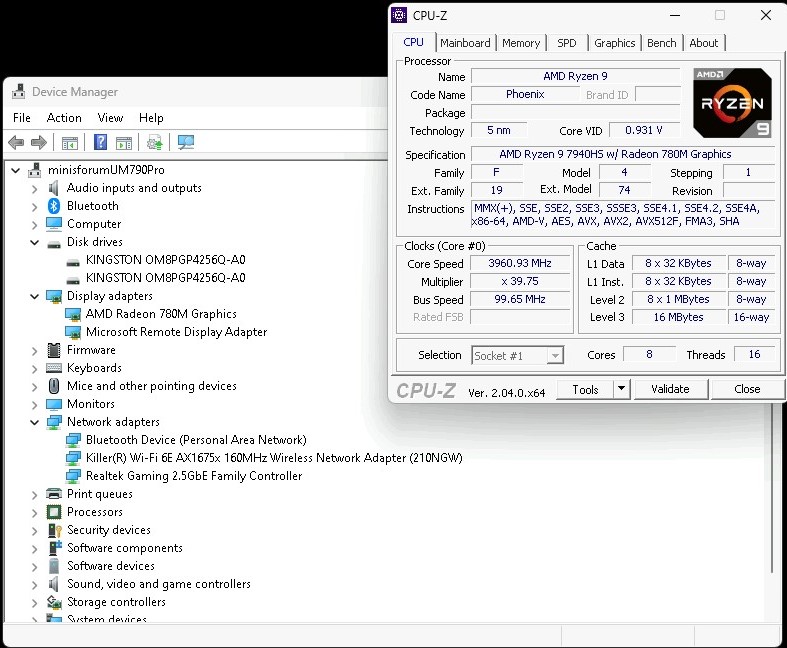
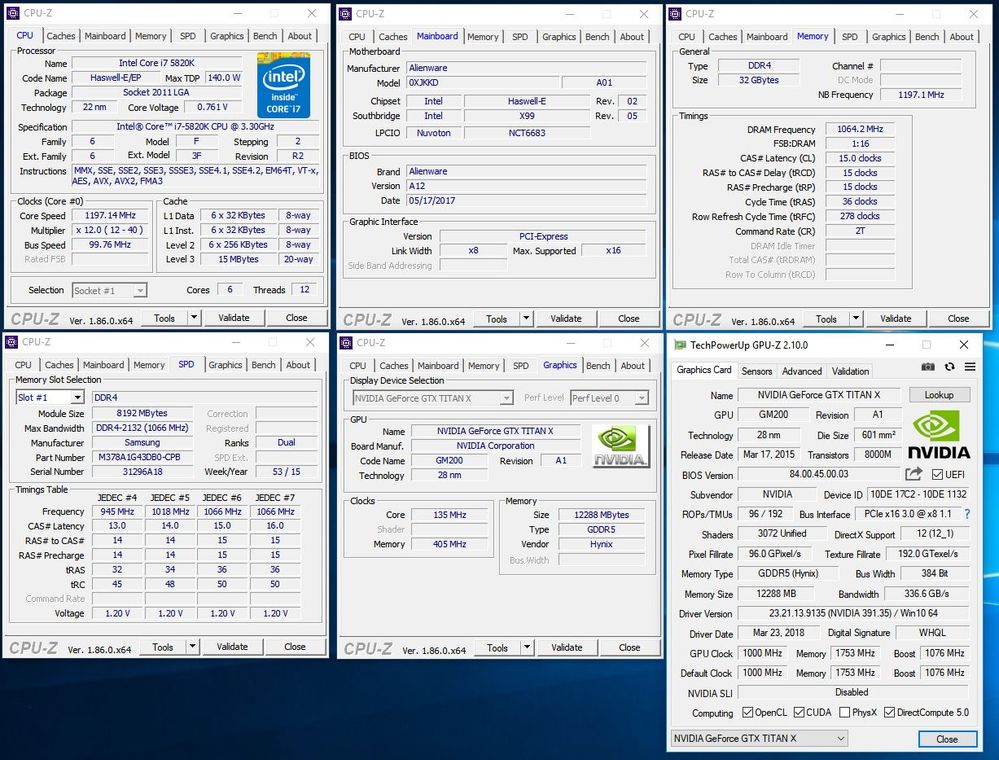
CPU-Z interface is divided into main tabs:
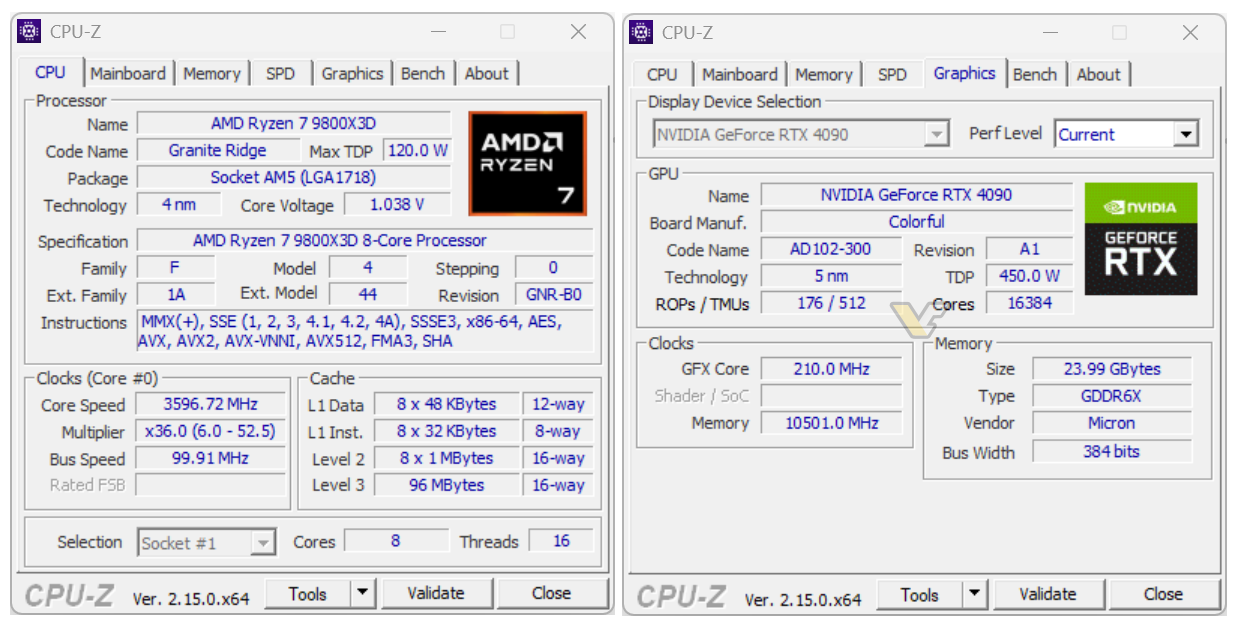
- CPU: Basic and detailed processor information
- Caches: Cache information at all levels
- Mainboard: Mainboard and chipset information
- Memory: Memory information and timings
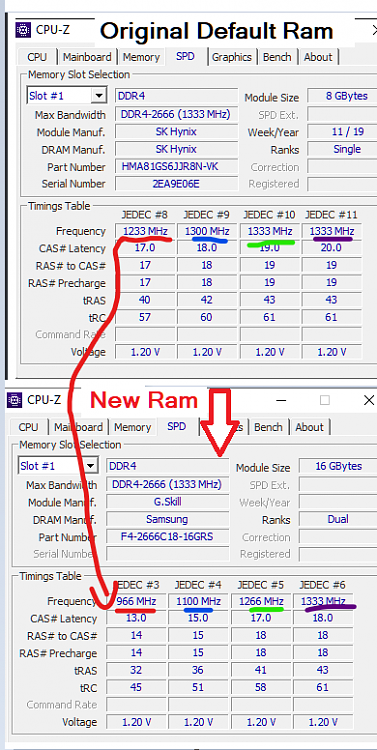
- SPD: Individual memory module information
- Graphics: Graphics card information
- Bench: Performance benchmarks
Keyboard Shortcuts
F5
Save screenshot as BMP file
F6
Copy current page to clipboard
F7
Save validation file
F9
Switch between CPU clock computation methods
Configuration File (cpuz.ini)
You can customize CPU-Z settings through the cpuz.ini file:
[CPU-Z]
TextFontName=Verdana
TextFontSize=13
TextFontColor=000060
Sensor=1
DMI=1
PCI=1
SPD=1
Place the cpuz.ini file in the same directory as cpuz.exe to apply settings.
Command Line Parameters
cpuz.exe -txt=report
Run CPU-Z in ghost mode and automatically create a text report
cpuz.exe -html=report
Create an HTML report instead of text
cpuz.exe -core=0
Display frequency of a specific core (0 to number of cores - 1)